

06 — Browser software
Rippre Pocket-Bookmarks
Available for Firefox
A bookmark manager that does not want your data.
Rippre Pocket-Bookmarks is a browser extension for Firefox and Chrome, for people who save more than they can read and would rather not hand their links to another service. Everything you save is an ordinary bookmark in a “Read Later” folder — Inbox, Reading, and Archive are folders you can see in your browser — so your browser keeps syncing it to your other devices exactly as it does today. There is no account to create and no server between you and your links.
On top of those bookmarks, it adds what the browser lacks: tags, notes, highlights, an offline reader, full-text search, and a full-page manager with split view, keyboard control, and undo. The bookmarks you already have stay where they are, and one click brings copies into the library. Tags, notes, and saved articles stay on your device, and nothing is collected.
- Built on your real browser bookmarks
- No account, no server, nothing collected
- Undo for every move, delete, and import
Screenshots
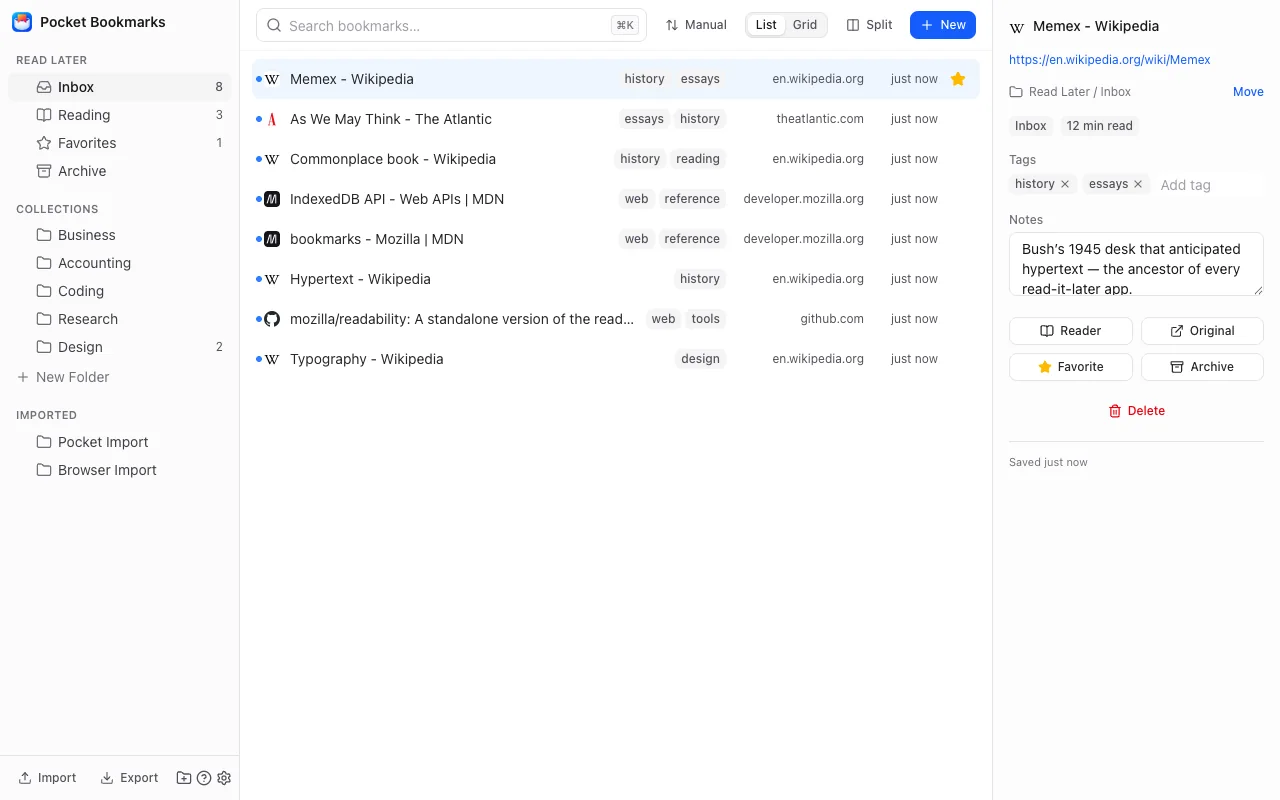
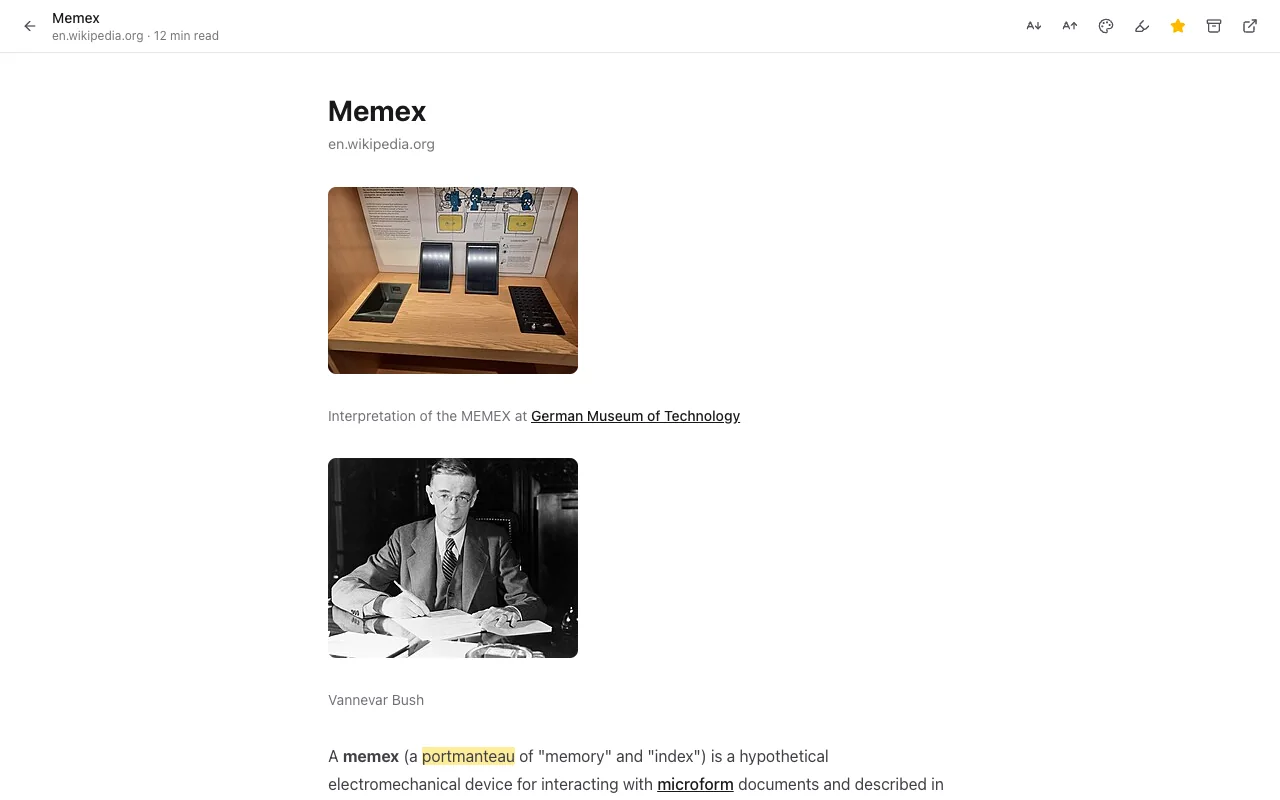
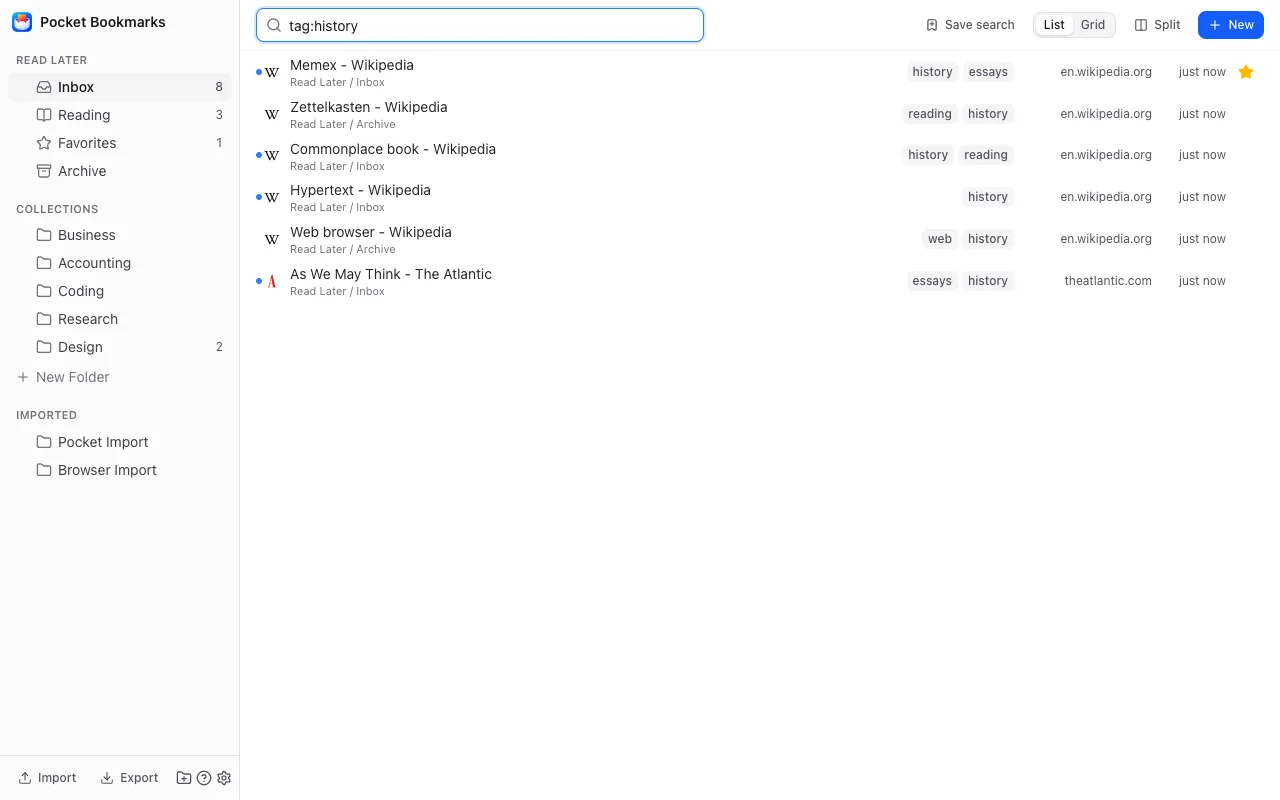
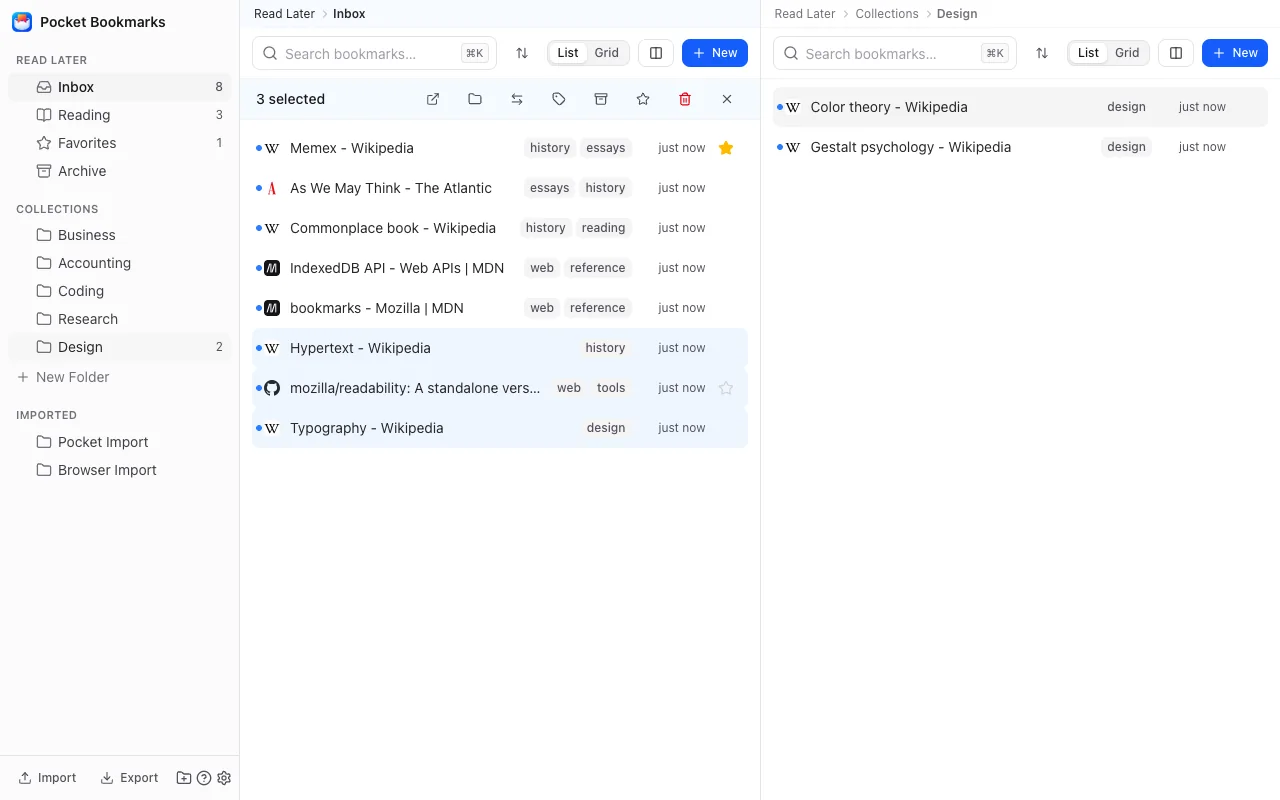
The extension as it ships, shown in Chrome with a sample library of public pages. Firefox shows the same screens. Select a picture to see it full size.
Get it
Free, with no account to create. Install it from your browser's add-on store, and it keeps itself up to date from there.
Firefox
- On Firefox Add-ons now, for Firefox 140 or newer on Windows, macOS, and Linux.
- Not offered for Firefox on Android, which gives extensions no bookmarks to work with.
Chrome
- Coming soon to the Chrome Web Store, as version 1.1.1.
- Email us, and we'll tell you the day it's there.
Features
Save in one step
- Save the page you are on as a bookmark, to Read Later, or both from the toolbar button or Alt+Shift+S (Option+Shift+S on a Mac) — or straight to Read Later from the right-click menu.
- Pick the folder, add tags and a note, and get a duplicate check — skip, update, or save another copy — before anything is written.
- Save every open tab into a folder at once, then reopen a folder or a selection as tabs whenever you want that session back.
- Tick “Keep a copy of this page” to store a screenshot and a self-contained copy on your device, for the day the site is gone.
- New saves get suggested tags from the site's name, the page's own keywords, and tags you already use — worked out on your device, and off with one switch.
Read offline
- Reader mode keeps the article's text, and the images the site allows, on your device, so it opens without a connection and contacts no one.
- Light, sepia, and dark themes, adjustable text size, and reading progress that picks up where you left off.
- Highlight in four colors, add a note to any highlight, and export them all as Markdown.
- Inbox, Reading, and Archive keep track of what you have read, and reading statistics show what you saved and finished each week.
Organize your way
- A full-page manager with your folders, your library as a list or grid, and a details panel. It fits any window size.
- Split view puts a second pane beside the first, each on its own folder: drag bookmarks across, or send a selection over with Shift+M.
- Drag and drop everything, with multi-select. Favorites is a star that leaves each bookmark where it is.
- Sort any folder by newest, oldest, title, or domain — or put a folder in order for good, so your browser's menu and your other devices show it too.
- Work the list from the keyboard: arrows move through rows, Shift extends the selection, and Alt with an arrow moves the rows you picked.
- Tag a whole selection at once, rename or merge a tag everywhere, write #hashtags in notes, and save any search as a smart folder.
Find anything
- Full-text search across titles, addresses, tags, notes, highlights, and the text of saved articles — all on your device.
- Filters for folder, tag, site, and reading status, with #tag as a shortcut.
- A command palette on Ctrl+K (⌘K on a Mac) for bookmarks, folders, and actions.
- Type pb and a space in the address bar to search your library without opening it.
Bring your links with you
- Bring in the bookmarks you already have with one click: copies land in the library with their folders, and the originals stay where they are.
- Import from Pocket, Instapaper, and Raindrop.io exports, bookmark files from any browser, CSV, or — in Chrome — the browser's own Reading List.
- Every file import is previewed and compared with your library first, so pages you already have are skipped unless you say otherwise.
- Export a full backup, CSV, Markdown, or a bookmarks file any browser can import. Your data is never locked in.
- Automatic backups land in your Downloads folder, weekly by default, and the last five are kept.
Tidy up safely
- Undo every move, delete, archive, import, merge, and bulk tag change — from the toast or with Ctrl+Z (⌘Z on a Mac).
- Find pages saved twice, pick which copy stays, and keep every tag and note from the others.
- Remove empty folders after seeing their names. The app's own folders, and anything outside the library, are never touched.
- If another device built its own Read Later folder before sync caught up, one click folds it into this one without losing a bookmark.
- An optional daily check flags saved sites that no longer answer. It is off unless you turn it on.
Why you can trust it
Your links stay real browser bookmarks, so nothing is locked in: remove the extension and every bookmark is still in your browser. Tags, notes, highlights, and saved articles stay on your device and are never uploaded. Rippre Pocket-Bookmarks asks for no standing access to the sites you visit — it looks at a page only when you act on it, and reads an article only after you grant an optional permission, once. Decline it and saving still works.
There is no account, no analytics, and no server of ours. Apart from a page you save fetching its own images for the copy, the extension's only network request of its own is an optional daily check, off unless you turn it on, that asks up to 25 saved sites a day, over HTTPS, whether they still answer. The cleanup tools never touch bookmarks outside the library, and the privacy policy spells out every detail.
Version updates
Rippre Pocket-Bookmarks has been on Firefox Add-ons since October 1, 2026, starting with 1.0.10, and 1.1.1 is the version for the Chrome Web Store. Each version below was built, tested, and packaged in turn; none before 1.0.10 reached a store.
-
Version 1.1.1
In review
The version for the Chrome Web Store
- The version that launches on the Chrome Web Store. Apart from its number, it is the same as 1.0.10.
-
Version 1.0.10
On Firefox Add-ons
A new icon, and the first on Firefox Add-ons
- A new icon: an orange bookmark tucked into a white pocket, on blue. It shows on the toolbar button, in the Extensions menu, and on the extension's own pages.
-
Version 1.0.9
The name you'll see in the stores
- The browser and the stores now show the extension as Rippre Pocket-Bookmarks: on the toolbar button, in the Extensions menu, and on the extensions page. Inside, it is still Pocket Bookmarks, and backups keep their folder in Downloads and their format.
-
Version 1.0.8
Ready for the stores: saved pages that contact no one
- Saved articles and page copies show only what was saved. An image that could not be stored with the page is left out rather than fetched when you open it, so reading a saved page contacts no one.
- The site check connects over HTTPS only, even when a site redirects it. Sites saved only with http:// addresses are no longer checked rather than reported as gone, and checking a site twice on one day no longer counts as two failed days.
- On Firefox, switching the site check on first asks for Firefox's permission to share bookmark information, since each site checked learns that it is on your list.
- The extension no longer asks for the “storage” permission, which it never used, and is no longer offered for Firefox for Android, which has no bookmarks for it to work with.
- The reader's Extract now button is gone. A bookmark saved without a readable copy gets one when you save the page again from the toolbar and choose to update it.
- Fixed: on Chrome, where synced and device-only bookmarks are kept apart, a new library could be created among the device-only ones and never reach your other devices.
-
Version 1.0.7
What's new after each update, and a steadier split view
- After an update, the library says which version it now is and offers what changed since the one you had, once. Settings › Help › What's new lists every version, and the notes ship inside the extension, so nothing is fetched.
- Notices — an update, the rating request, a merge offer — sit above both panes instead of inside one.
- Tabbing through the other pane no longer makes it the active one; clicking or typing in it does.
- Inbox, Reading, Favorites, Archive, Collections, and Imported can no longer be renamed, moved, or deleted. A renamed one used to be replaced by a new, empty folder on the next start.
- Fixed: a name box opened from a folder's menu lost the keyboard, so what you typed ran the list's shortcuts instead.
- Fixed: with two panes open, a title or note could be saved to the other pane's bookmark, and the split view did not come back when the library was opened again.
-
Version 1.0.6
Split view: two panes side by side
- Split view puts a second library pane beside the first, each on its own folder, the way a two-pane file manager works.
- Drag bookmarks or folders from one pane to the other, or send a selection across with “Move to Other Pane” or Shift+M.
- “Open in Other Pane” on any folder points the second pane at it, and each pane's title line walks back up its path.
- Folders among the rows now have their own menu: open, open in the other pane, rename, move, put in order, open all in new tabs, export, and delete.
- Dropping bookmarks on a folder's empty space, or below its last row, now adds them at the end.
- Fixed: an answer to the rating request could be lost if the page closed at that moment, so it could ask again.
-
Version 1.0.4–1.0.5
Fixes for the keyboard and ordering
- A selection moved with the keyboard or the row menu now travels in its on-screen order.
- Moving a bookmark within its own folder no longer resets its read status, and undo calls it a reorder.
- The list keeps the keyboard when the row you were on is moved, archived, or deleted — in Firefox too — and the favorite star is no longer a separate tab stop.
- Holding Alt with an arrow moves the rows once per press; Alt with Home or End moves them to the top or bottom.
- Putting a large folder in order is faster, and a run that stops partway can still be undone.
- In the grid, left and right step one card, and up and down a whole row of cards.
-
Version 1.0.3
Folder ordering and a keyboard for the list
- “Put folder in order…” writes a sort — title, domain, newest, or oldest — into the browser's own bookmarks, so the browser's menu, your other devices, and exports show it.
- It can include the folders inside, says how much it will move first, keeps the app's own folders in place, and undo puts the old order back.
- The list works from the keyboard: arrows move through rows, Shift extends the selection, Ctrl or Cmd with an arrow moves without changing it, Space adds a row, and Alt with an arrow moves the selected rows.
- M opens “Move to…” for the selection, and one row at a time is a tab stop, so Tab passes the list instead of visiting every bookmark.
- Folder pickers with more than a dozen folders can be filtered by name.
- Assistive technology now treats the list as a grid of rows you can focus, select, and move.
-
Version 1.0.2
Your existing bookmarks, one click away
- On a first run beside existing bookmarks, the empty library and the set-up page count what the library lacks and bring copies in with one click — folders kept, originals untouched, and undoable.
- Open any folder as a set of tabs with “Open all in new tabs”, or open a selection; more than fifteen tabs asks first.
- Settings › Data › “Remove empty folders” names the folders before removing them, and undo brings them back.
- In duplicate review, “Keep this” picks which copy of a page stays.
- A rating request after a week of use and 25 saves asks everyone the same neutral question, with “Later”, which asks again three months on, and “Don’t ask again”. Nothing is reported anywhere.
- New Help topics explain bringing in your bookmarks, reopening tabs, and cleaning up.
-
Version 1.0.1
Hashtags, auto-tagging, and any window size
- #hashtags work in every tag field, #hashtags written in a note become tags, and #tag in the search box finds them.
- Auto-tagging, on by default, gives new saves the site's name, the page's own keywords, and any tag you already use that appears in the title — worked out on your device.
- The toolbar form shows the suggested tags as #tags you can prune before saving.
- The manager fits any window: below 1,024 pixels the details panel becomes a drawer, and below 768 pixels the folder sidebar does too.
- Reader articles wrap long words and scroll wide tables instead of widening the page.
- Firefox: the search box no longer overlaps the Sort button in a narrow window.
-
Version 1.0.0
The first complete build
- Save pages as a bookmark, to Read Later, or both, from the toolbar or Alt+Shift+S (Option+Shift+S on a Mac) — with folder, tags, a note, and a duplicate check — or straight to Read Later from the right-click menu.
- Saved pages are real browser bookmarks in a “Read Later” folder, synced through your browser's own account.
- A three-pane manager with drag and drop, multi-select, per-folder sorting, safe folder delete, and undo.
- An offline reader with themes, text size, reading progress, and highlights with notes, plus optional page copies.
- Full-text search with filters, a command palette, smart folders, and pb in the address bar.
- Import from other services, bookmark files, and the browser itself; export, automatic backups, tag tools, duplicate review, and an optional site check.
Documentation
How to set up Rippre Pocket-Bookmarks, use it day to day, and fix what goes wrong.
- Install and set upRequirements, availability, first run, and bringing in your bookmarks.
- Save pagesThe toolbar form, the right-click menu, tabs, and suggested tags.
- Organize your libraryFolders, drag and drop, sorting, split view, cleanup, and undo.
- Read offlineThe reader, highlights and notes, and page copies.
- Search and shortcutsFilters, the command palette, the address bar, and every key.
- Import, export, and backupsBring links in, take them out, and keep backups.
- Settings and privacyEvery setting and its default, and where your data lives.
- Troubleshooting and helpCommon questions, real limits, and how to reach us.
Build with Rippre